Backstage Account Recovery
This article explains how you can recover your Backstage account if you have lost access
What happens if I’ve forgotten my username or password?
If you can’t log in to Backstage because you’ve forgotten your username you can simply use the email address you gave when you registered in its place. If you’ve forgotten your password, you can reset it by following the instructions outlined in this article How to reset your Backstage account password.
What happens if my registered MFA device is preventing me from logging in?
If you opted in for MFA and have successfully entered your username and password but cannot log in because the authentication flow is waiting for confirmation or a one-time password from your registered multi-factor device, try the following:
-
Choose “Use recovery code” on the MFA login page and enter an unused recovery code. Recovery codes are one-time passwords. This list of 10 codes were given to you at registration to write down in the event you’re locked out of your account.
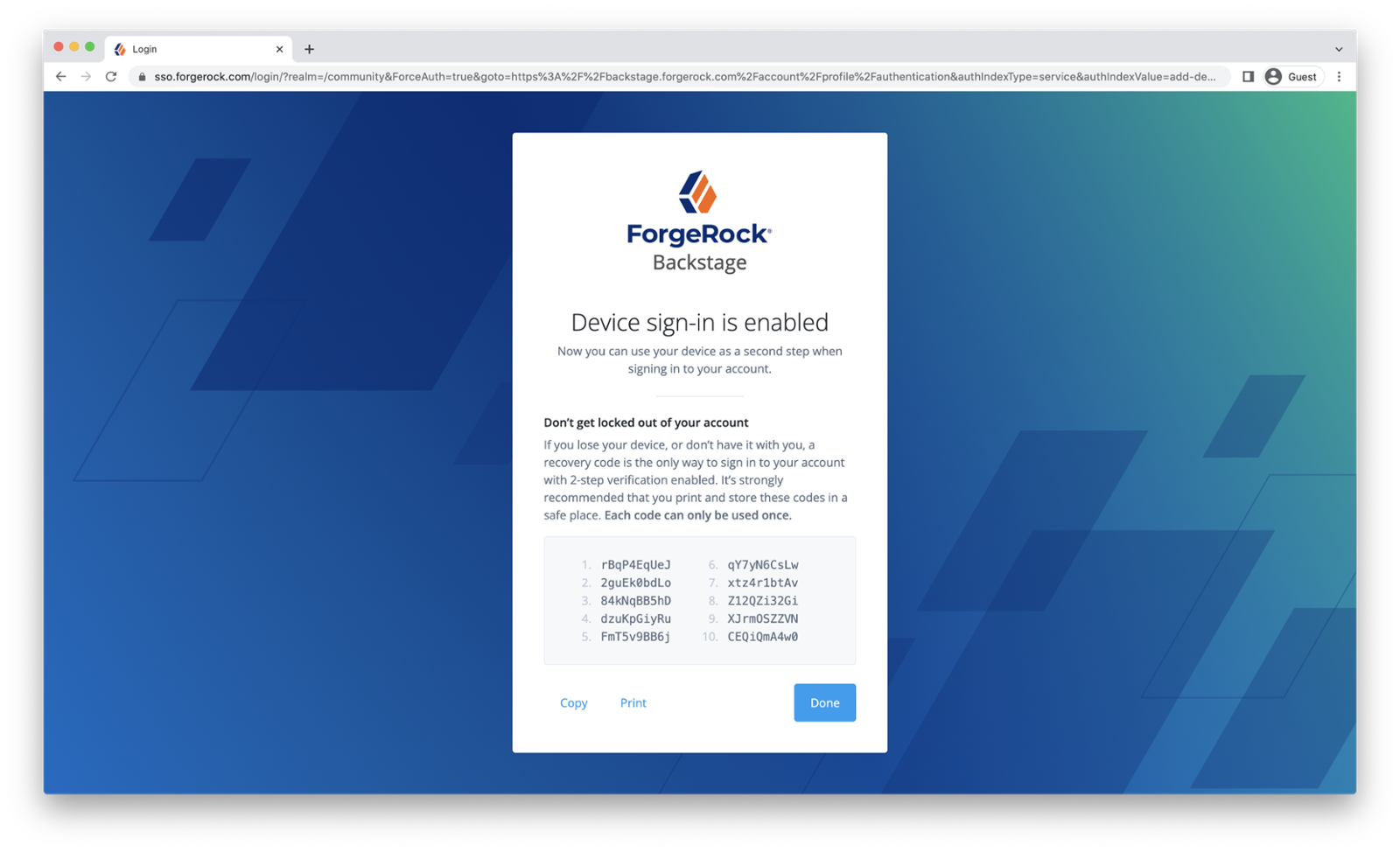
If you had to use a recovery code, you should reset your MFA device as described in Updating Multi-factor Authentication Settings.
-
If you lost your recovery codes, refer to the section What happens if I lost my recovery codes?
WebAuthn is a new technology and not all browsers support it yet. Note that as with mobile devices, you can only use WebAuthn on the same device where you set it up originally. This is due to the fact that a unique key is stored in on the device which is needed to perform authentication. Unlike other MFA methods, however, WebAuthn happens on the same device where you’re logging in via your browser, and is therefore less portable than the other supported methods. If you wish to log in on more than one computer, please register WebAuthn for each device.
What happens if I lost my recovery codes?
SMS and Email OTP recovery method
This method is only available if you are a customer or partner of Ping Identity and have a valid phone number and email address registered with your account.
If you have lost your device as well as your recovery codes, you can still regain access to your account by selecting “SMS and Email OTP” after failing to provide your MFA credentials:
-
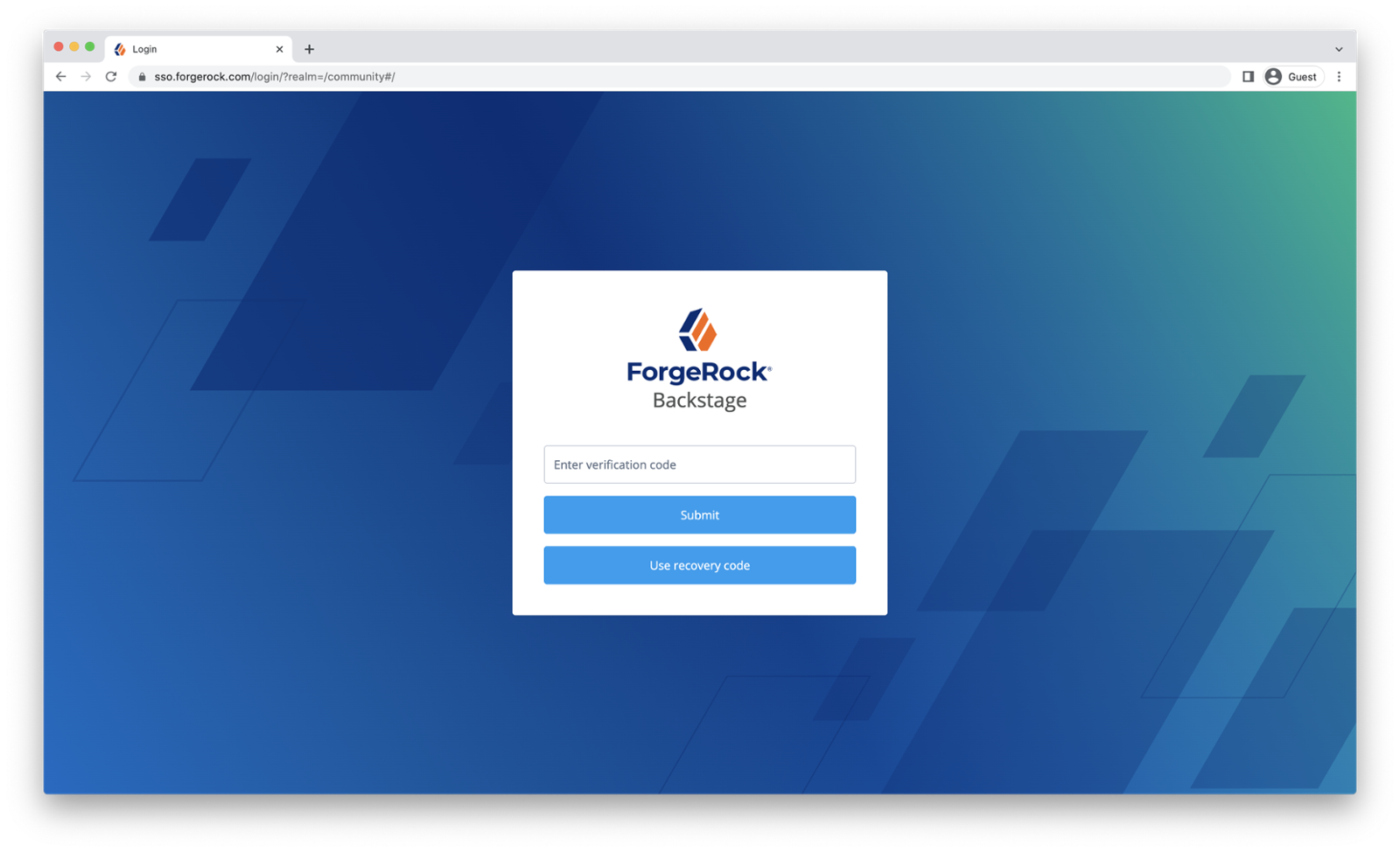
Select “Use a recovery code” on the page in your browser that is waiting for your multi-factor verification. This page will be shown after successfully entering your username and password. Below is an example of such a page for accounts with an OATH multi-factor device registered. Please note that this page will appear slightly differently for accounts with Push authentication or WebAuthn.
-
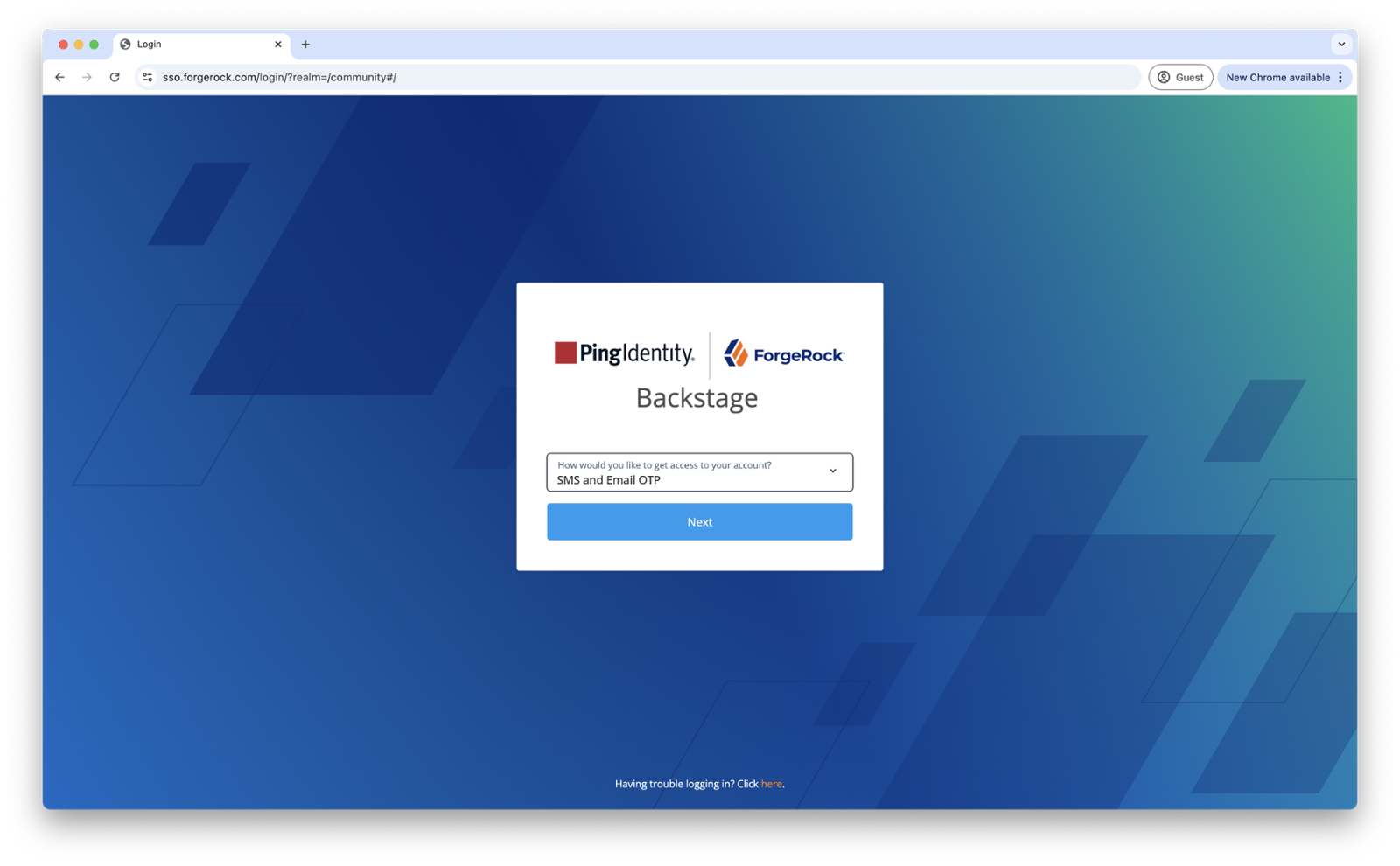
Then select “SMS and Email OTP”.
-
In order to verify your identity, you will receive two separate One Time Passwords: one as a text message to your phone number and a second one to your email address. You will need to enter both correctly in order to unlock your account. For this alternative method to work, your account needs to have a valid phone number (it has to start with the country code). If you cannot receive either the text message or the email, you will not be able to log in with this method.
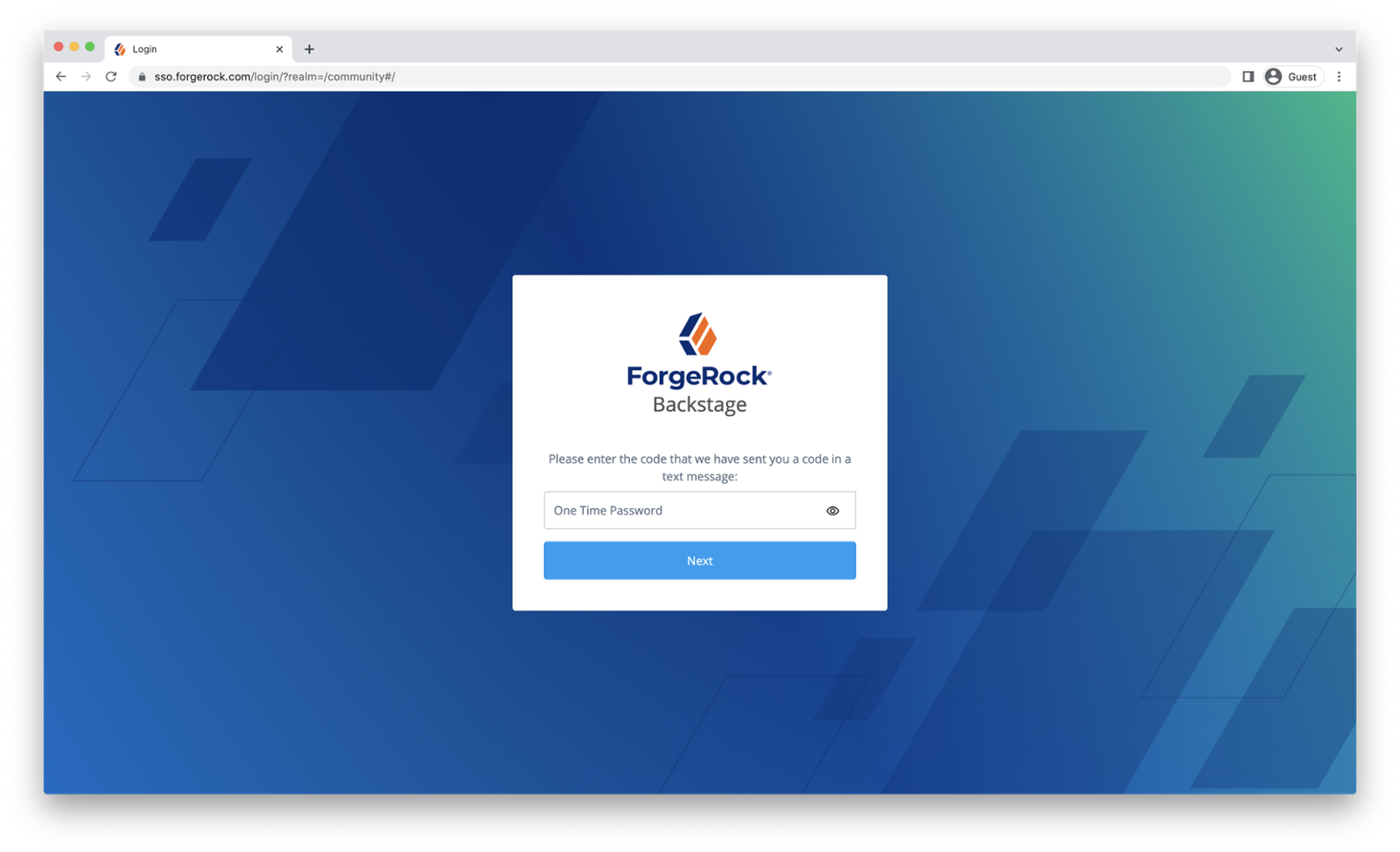
We will regularly ask you to update your phone number and email address to make sure that the SMS and Email OTP recovery method is available, should you need it.
ID verification
If you have lost your device as well as your recovery codes, you can still regain access to your account by selecting “ID verification” after failing to provide your MFA credentials:
-
Select “Use a recovery code” on the page in your browser that is waiting for your multi-factor verification. This page will be shown after successfully entering your username and password. Below is an example of such a page for accounts with an OATH multi-factor device registered. Please note that this page will appear slightly differently for accounts with Push authentication or WebAuthn.
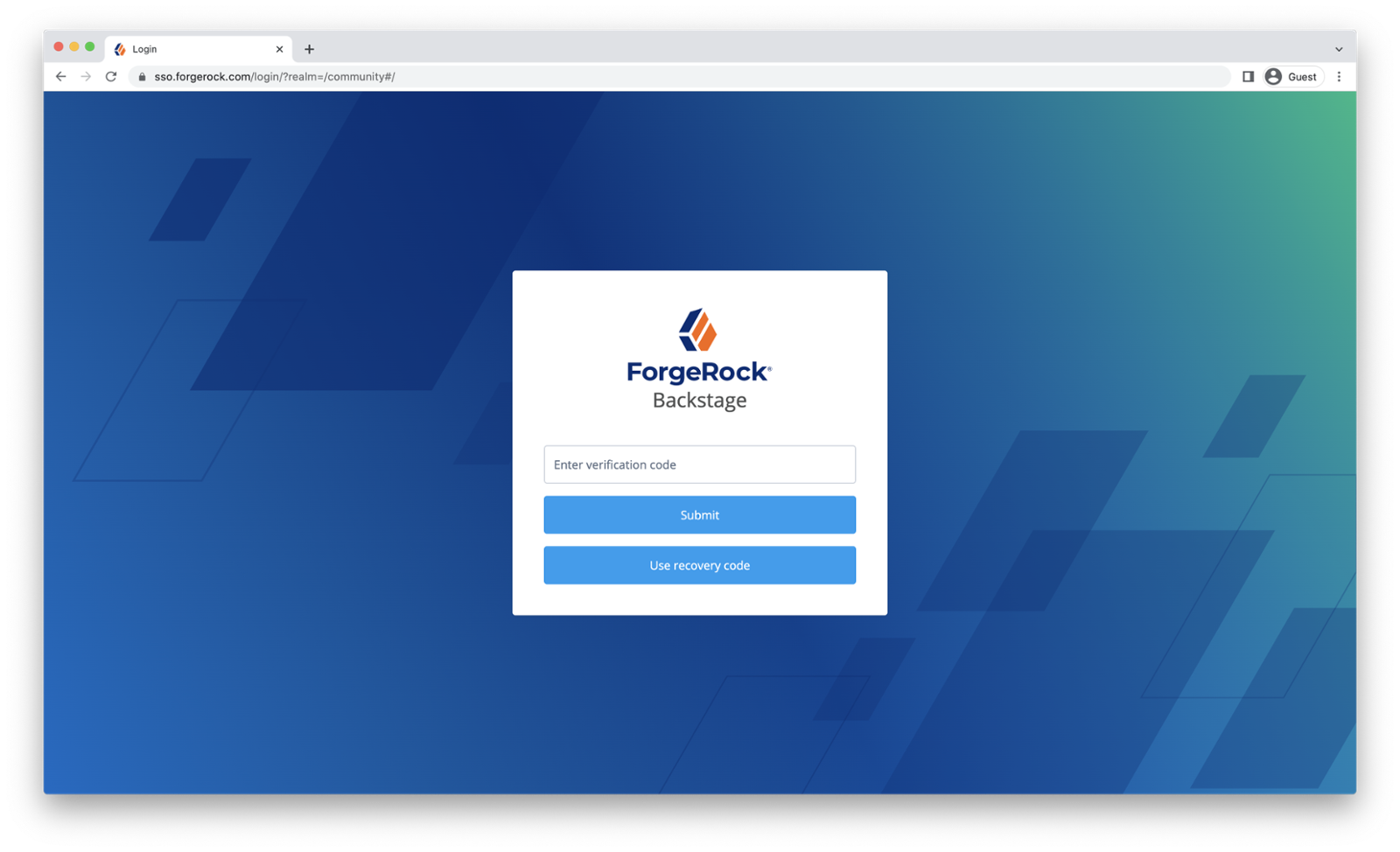
-
Then select “ID verification”.
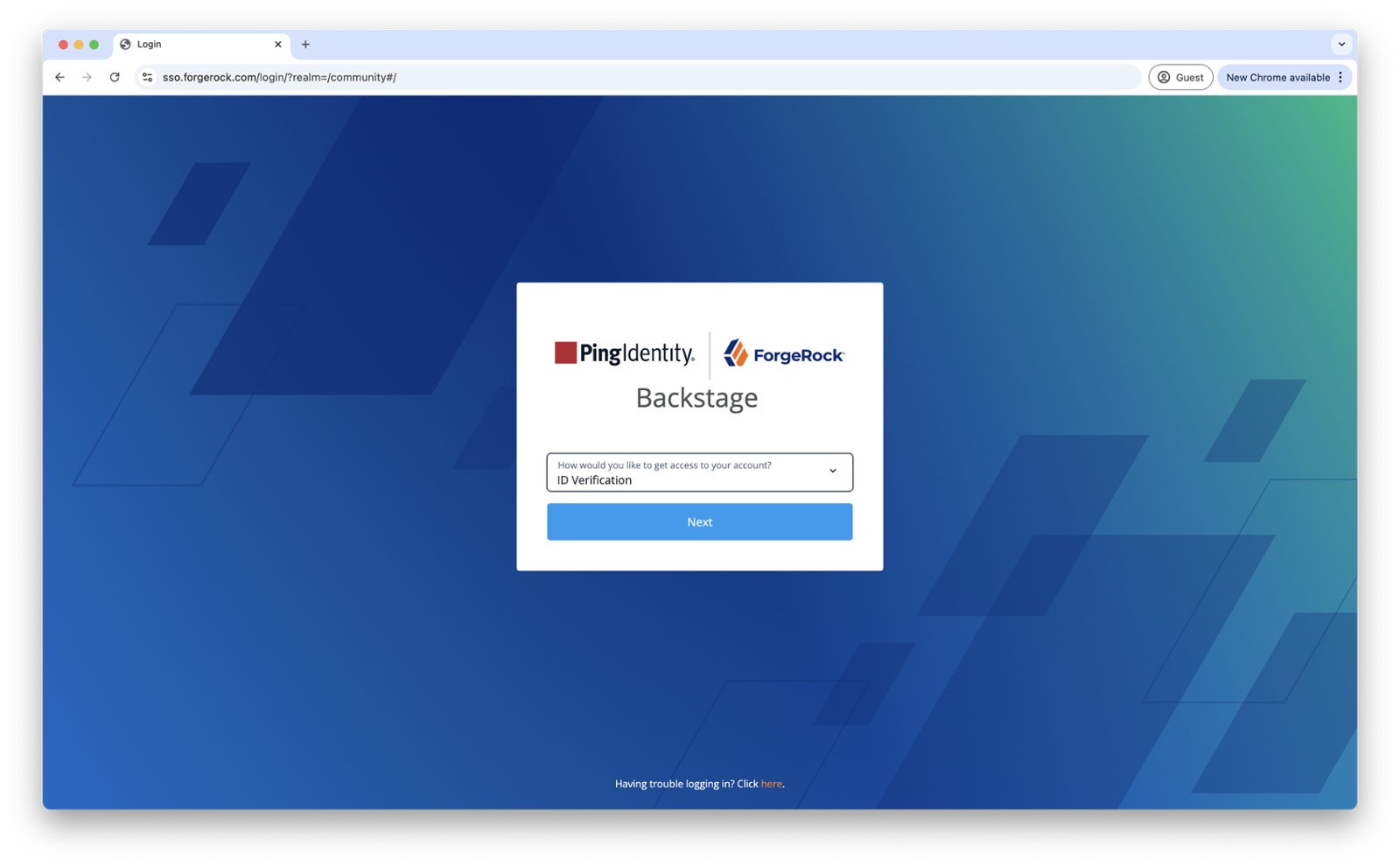
-
You will then be prompted to scan a QR code from your device to start the verification process. Once scanned, please follow the steps on the device to completion.
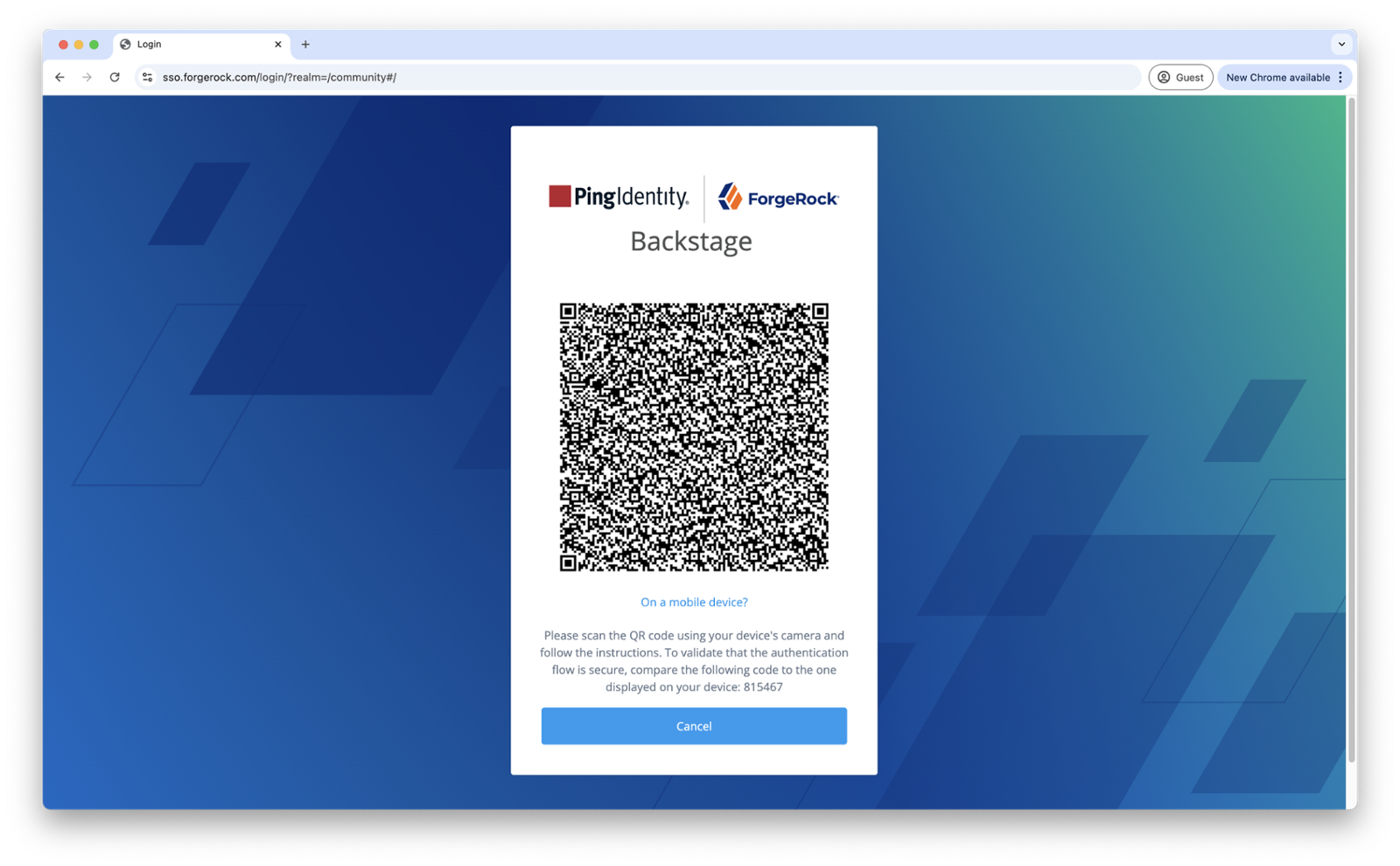
In some situations it might not be possible to verify your credentials. If this is the case, please retry, and if the problem persists please attempt manual verification (as described below).
Manual ID verification
If you are unable to use all other verification methods listed above, as a last resort, we may be able to verify your identity manually. You can request this by sending a picture of your government issued valid photo ID (e.g. passport, driver’s license or national ID card) to backstagehelp@forgerock.com. We will verify that
-
The first and last name(s) in your document matches those in the account;
-
The request was sent from the email address registered with the account;
-
If your avatar picture associated with your email address is of a human face, it matches the photo on the ID
If all the above checks pass, your existing MFA device settings will be deleted, and you will be able to log in with your username and password. You will also be prompted to set up a new MFA device. Please make sure to print your recovery codes and keep them in a safe place.
Your ID document is sensitive data. To protect your privacy, we will destroy all copies of the picture you sent once the case is closed. Beware of phishing attempts! Make sure to only send your ID documents to backstagehelp@forgerock.com . If you receive a suspicious email, please let us know immediately on this address.
Creating a new account
If it’s not possible to provide a government issued valid photo ID or you would prefer not to for security/privacy reasons then an alternative option is to create a new account. A new Backstage account can be created by following this link and filling out the required details.